Host Profile tab
Once logged into your account, you will land on your profile page which will look like the below, you can also access this by clicking on the "person" emoji in the top right corner :
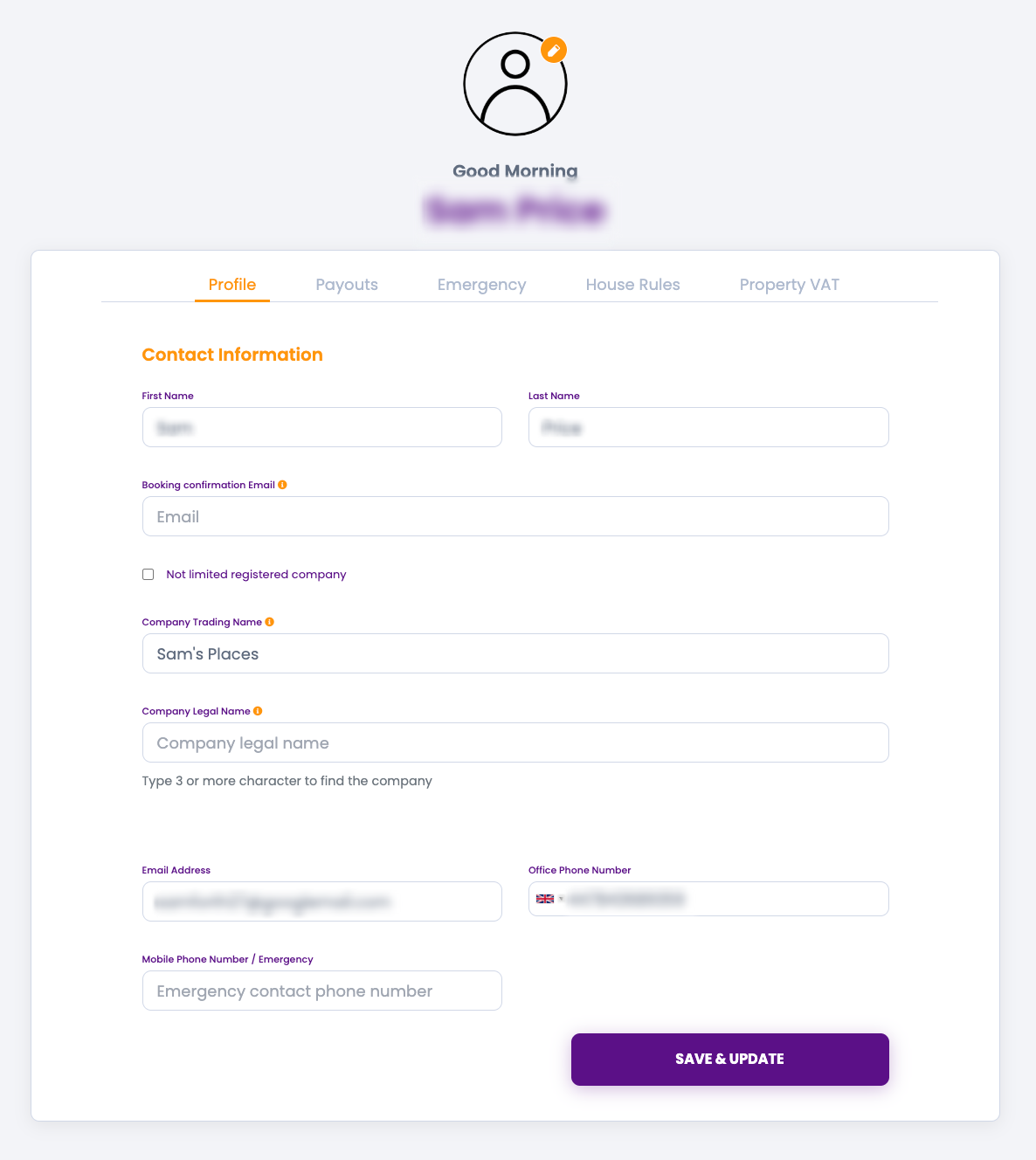
Some areas of the form will have been automatically generated from the information previously provided on registration, however we do need you to complete some additional areas.
Booking Confirmation email : All booking correspondence will be sent to the email you registered with, however you can add an additional email where all booking correspondence will also be sent too. Therefore if you have a business partner, management team, bookings team or a central email for enquiries, this would be a good email to use for this section.
If you are NOT a limited registered company in the UK :
If you are not trading as a limited registered company, then please tick the box, and the form will update to show the below sections for you to complete.
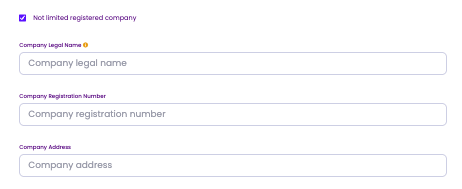
Company legal name : the name you trade under, if you do not use a company name, please enter your personal name.
Company registration number : If you have company registration number from trading outside the UK please enter, if you do not have a registration number this can be left blank.
Company address : the address in which your company is associated with, this can be a registered office or a personal home address should you not have an office, however it is compulsory that a correspondence address is provided.
If you ARE a limited registered company in the UK :
If you are a limited registered company, then please leave the box unticked and complete the below 2 sections :
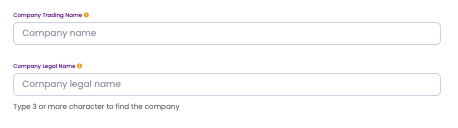
Company Trading name : please enter the name you trade under, you may trade under a different name to that registered under companies house, therefore please enter whatever you trade as.
Company legal name : this is the name in which you are registered with at companies house, if you start to type 3 or more characters, this is linked to companies house and will start to suggest suitable matches, please select the appropriate option.
Emergency contact number : where possible we do ask that you provide an alternative contact number, that we can call in emergencies.
Remember to click "Save & Update" to save the details provided.
Payout tab
The payout tab enables you to enter the bank details you wish for your host payout's to be paid into for ALL bookings made under this host profile.
Please complete all fields and carefully check details are correct before saving. It is the hosts responsibility to ensure the details are maintained with upto date information.
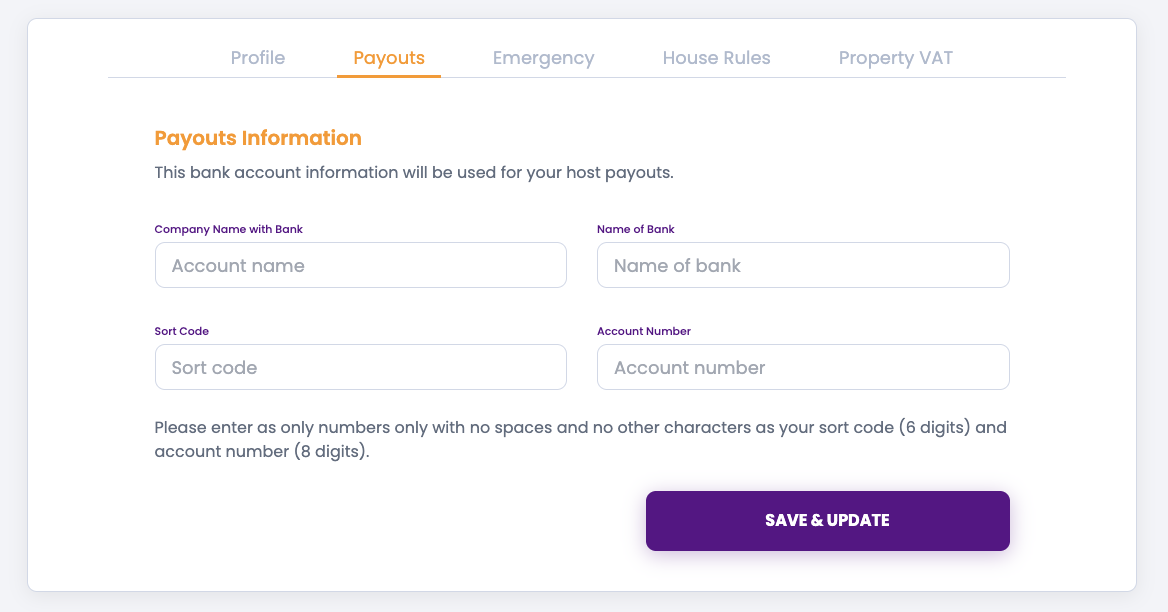
Unfortunately you can only have one set of bank details per host profile. If you wish for different properties to be paid into different bank accounts then you do need to set up different host profiles for this.
Emergency Tab
It is very important that you provide an emergency contact. These details must be an alternative contact to that contact details on the host profile tab.
Please complete all fields and save, these can be updated at anypoint.
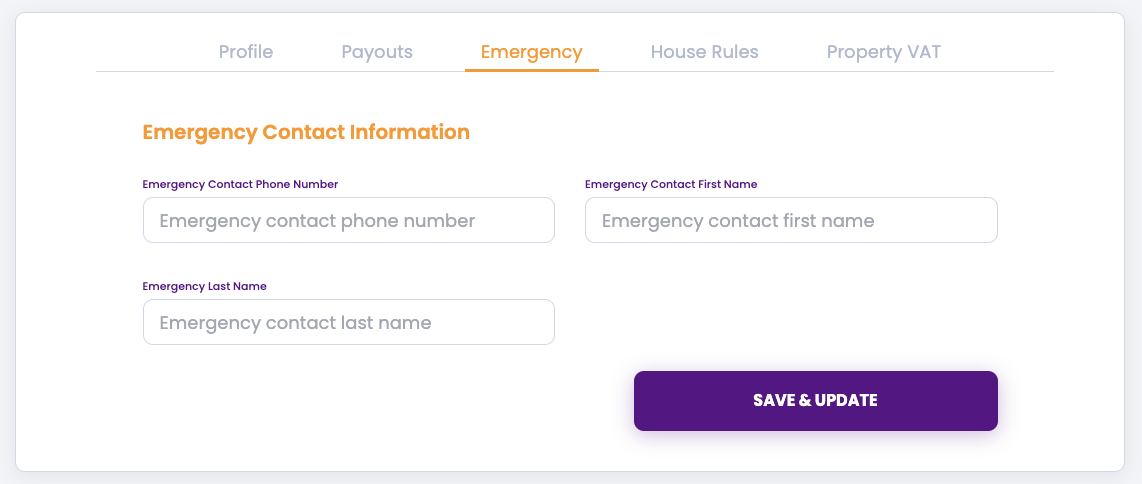
Please note that we will only contact the emergency contact in emergencies subject to not being able to get hold of the host on the contact details provided first.
House rules Tab
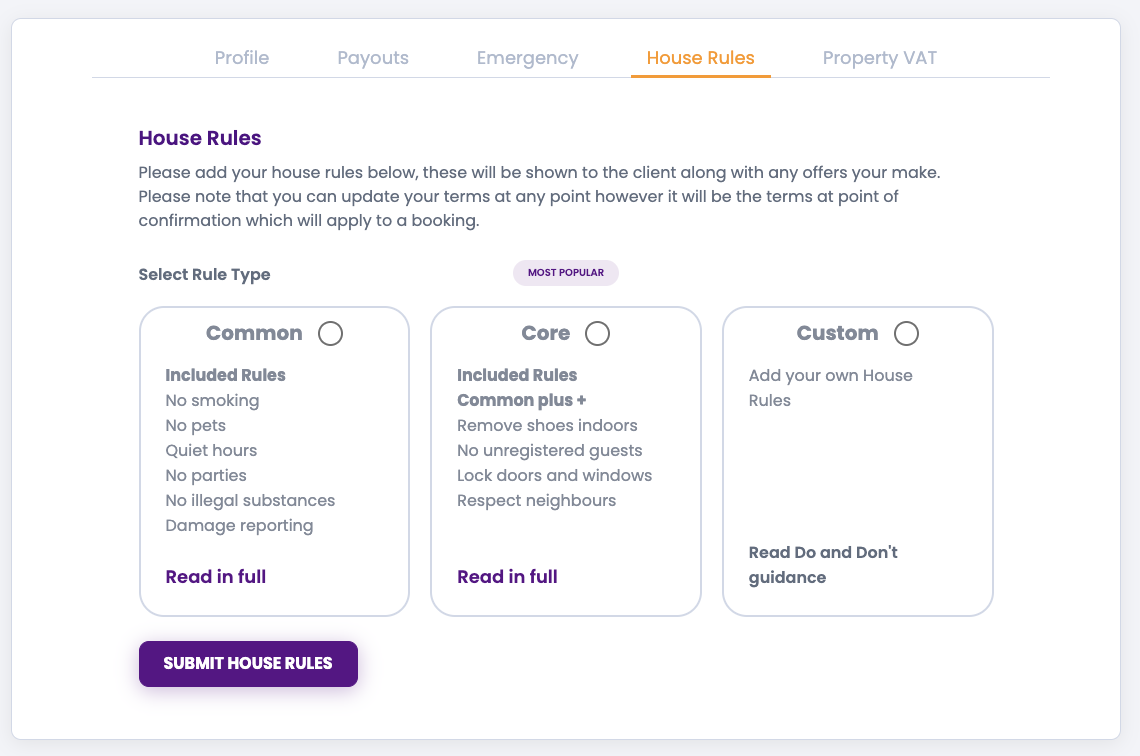
Hosts can now add "House Rules" which will apply to all bookings made under this host profile. These are a generic set of rules which you wish your guests to abide by, they are sent to guests alongside the property check in details. House rules are not property specific as any information relating to a specific property should be included in the check in information and NOT in the house rules.
There are 3 options :
Common : a preset of common house rules
Core : a more comprehensive preset of common house rules
Custom : with custom you are able to draw up your own house rules, please ensure you read the Do's and Don't guidance before completing these, as any house rules which do not comply will be rejected.
Property VAT
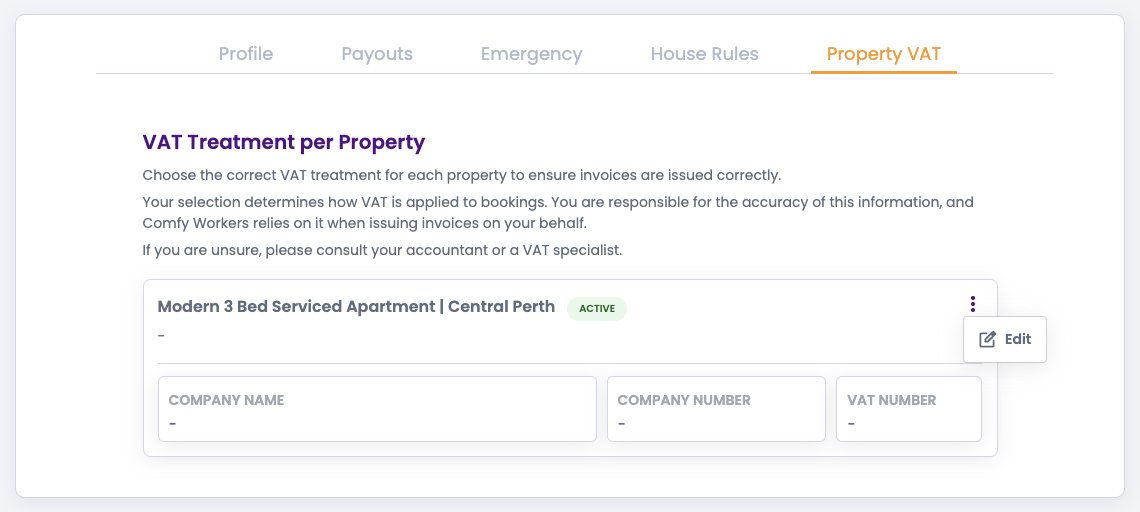
All hosts need to state their VAT status whether that be VAT registered or not. Under this tab you will find each of your properties uploaded and you will need to select the VAT status for each property.
To amend the status select edit as shown below :
A pop up will then show as below :
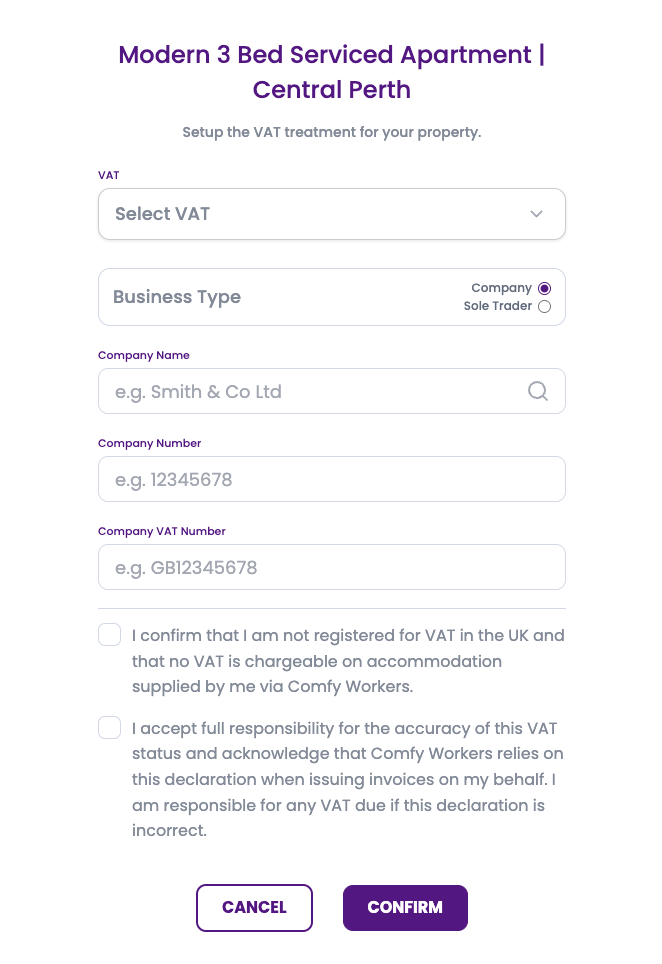
Select the VAT option applicable to this property :
- Non VAT registered
- Standard VAT
- FRS
- TOMS
If non VAT registered, you just need to read and accept the statements and confirm you selections.
If a VAT option is selected, you will need to complete the form in full, ensuring all details are correct and confirm.
You are able to amend these details at any point should the status change at any point in the future. For more information around VAT please check out our other articles.
Was this article helpful?
That’s Great!
Thank you for your feedback
Sorry! We couldn't be helpful
Thank you for your feedback
Feedback sent
We appreciate your effort and will try to fix the article